Because eating keto together is easier when you can actually
see what the other person is eating.
KetoLens lets you connect with family members so you can see
each other's shared meals, log a meal you both ate in one tap,
and automatically share your pantry libraries. This page covers
the whole flow — from the first connection request to the gold
crown.
What you get
Three things that kick in once someone is marked as a
Family Member.
Family sharing starts with a regular connection request.
You can upgrade it to Family once they accept.
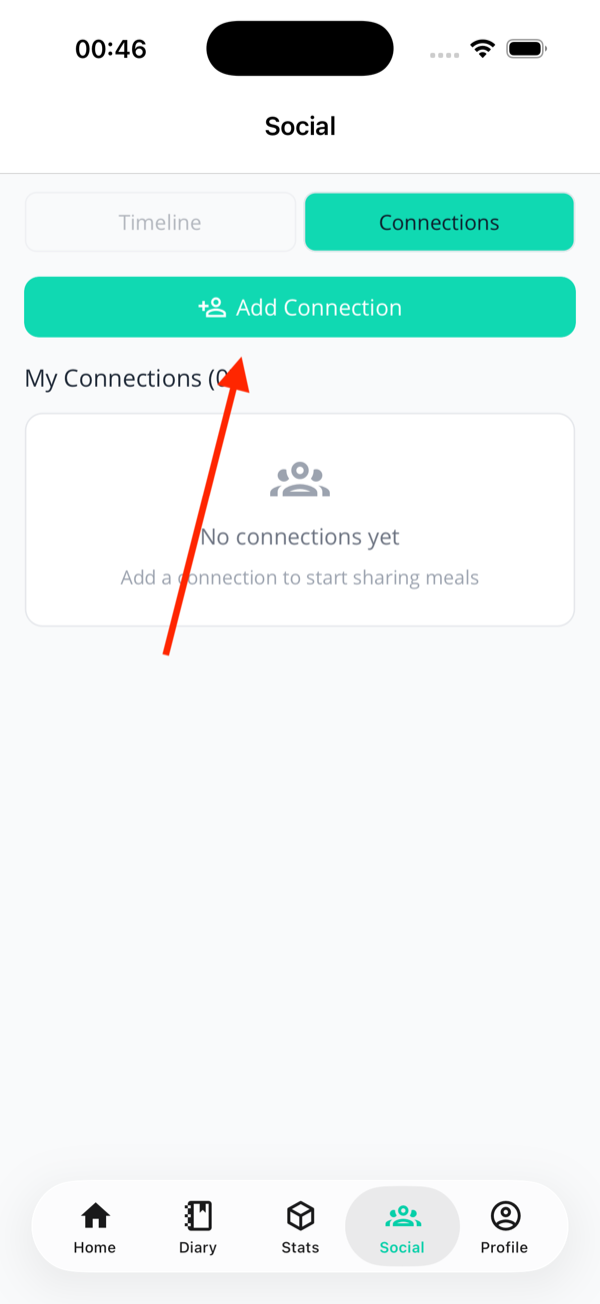
Tap the Social tab (bottom
nav).
Tap Connections at the top
of the page.
Tap Add Connection (the
green button near the top of the list).
Enter their email address — the same one
they used to sign up for KetoLens.
Tap Send Request.
The request lands in their app. Once they accept,
they'll appear in your Connections list and their
shared meals will start showing in your timeline.
Waiting on them
Your sent request shows under a "Sent Requests"
header until they accept. You can't mark anyone as
Family until the connection is mutual — one-sided
requests don't count.
Enter their email, tap
Send Request.
Step 2 — Mark as Family Member
Pantry sharing needs both sides; crown and shared meals don't
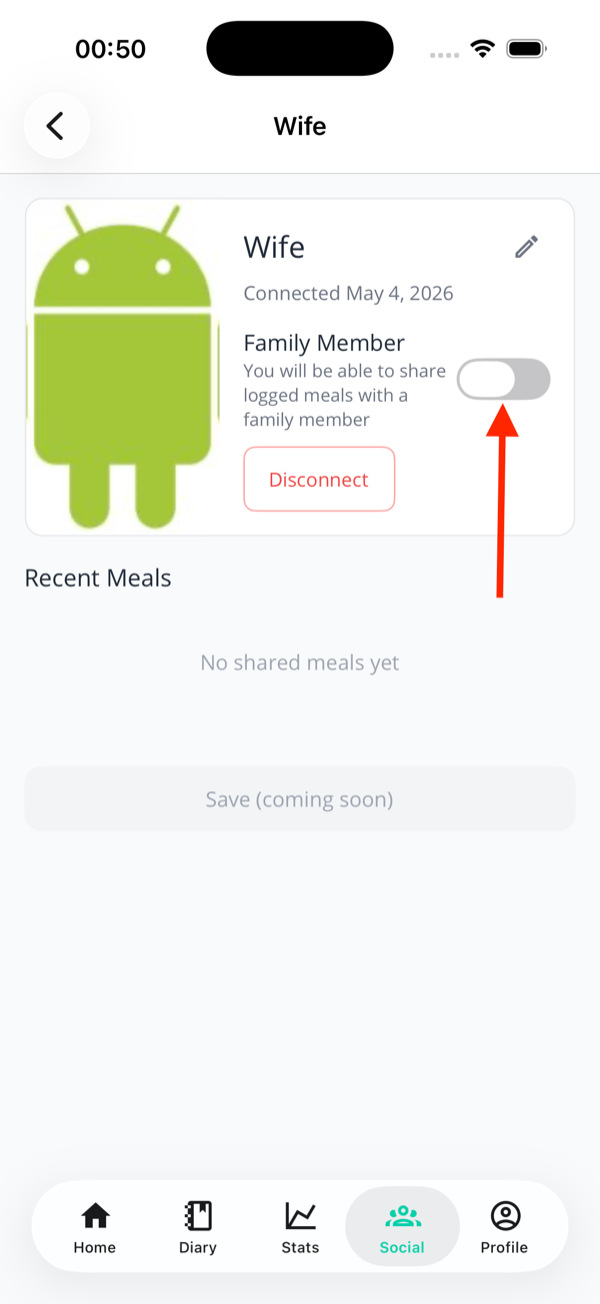
Once connected, open their profile and flip the Family
Member switch. The crown and one-tap shared logging kick in
as soon as you mark them — they don't have to
reciprocate for those. Pantry syncing is the one thing that
needs both of you to opt in.
The Family Member toggle on their
connection profile.
Go to Social → Connections.
Tap their name to open their profile.
Tap the Family Member
toggle to turn it on.
That's your side done. Ask them to do the same on
their device — open your profile in their app and
toggle Family Member on.
Pantry sharing needs both sides
The crown and "I shared this meal" button work as
soon as you mark them — their side doesn't matter
for those. But pantry syncing only starts once they've
also marked you as Family. Until then, you'll see a
"pending" banner on their profile.
What the pantry status banners mean
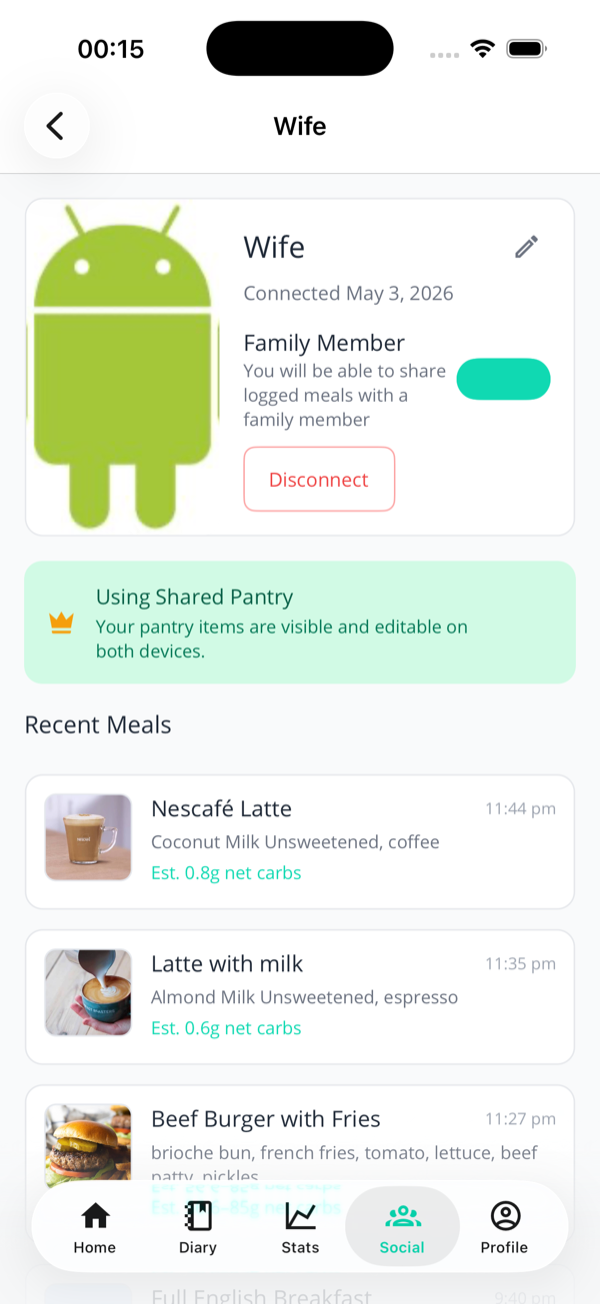
Scroll down on their connection profile to see the
current pantry sharing status:
Active (crown + green text) —
both sides have marked each other as Family.
Pantry items are syncing automatically.
Pending (yellow text) — you've
toggled Family on, but they haven't done the
same yet. Nudge them.
The pantry status banner on a connection's profile
— Active when both sides are set, Pending when
you're still waiting.
👑 The crown in the feed
How to spot family entries at a glance
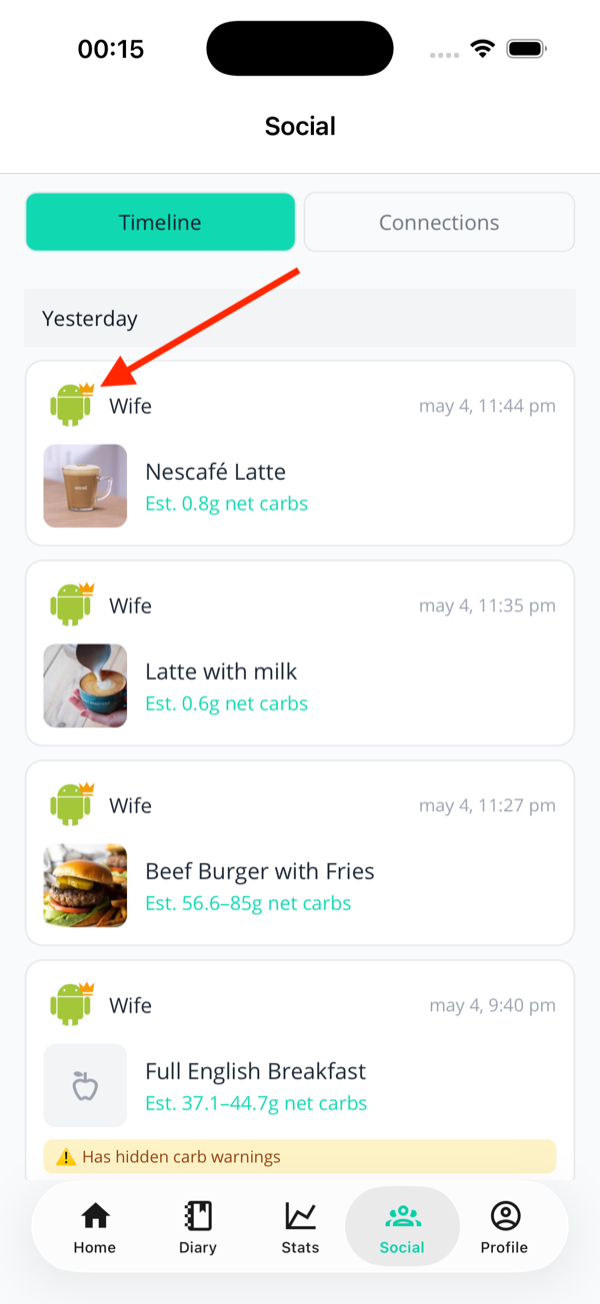
As soon as you mark someone as Family Member, a small gold
crown appears on top of their avatar wherever they show up
— in the Social timeline, in your Connections list, and on
their profile. It's just a visual marker so you can tell
family entries apart from regular connections without having
to remember who's who.
The gold crown on a family member's avatar in the
timeline. Regular connections don't get one.
The crown is yours to give
It shows up the moment you flip the Family Member switch —
they don't have to do anything on their end. The only thing
that needs to be mutual is pantry sharing.
🔗 Sharing a meal with your connections
Must be turned on per meal
Meals are private by default — connections can't see
anything unless you explicitly share it. The share toggle
is right there on the meal itself, so you decide
individually which ones go out.
Log or open a meal from your Diary.
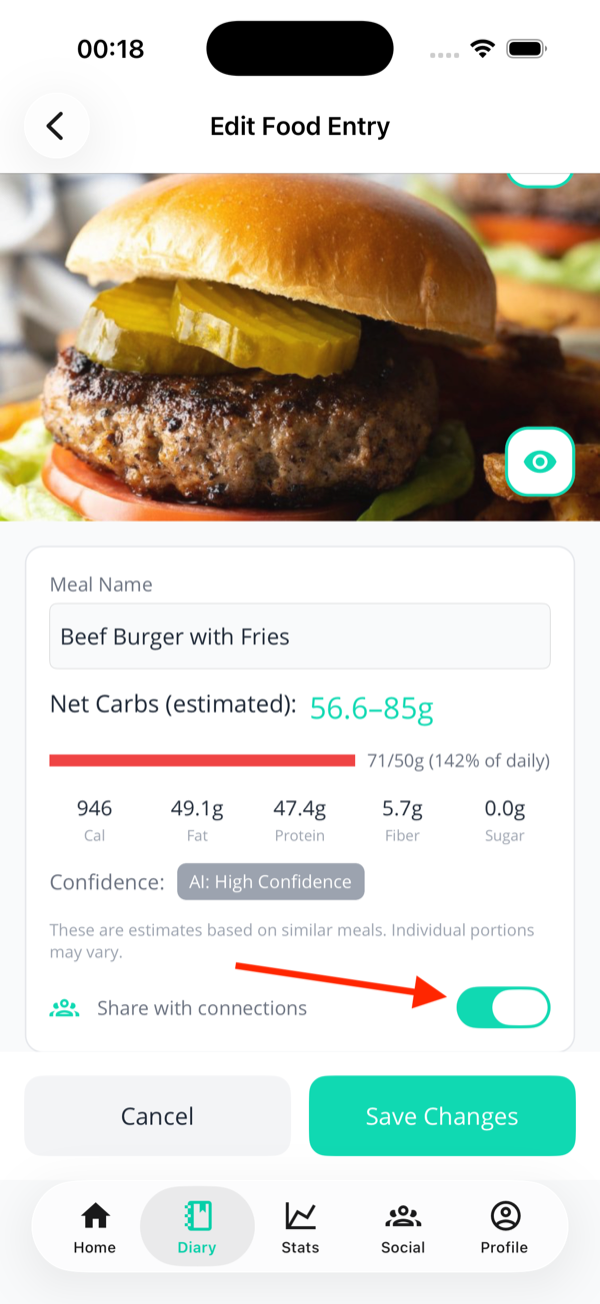
Find the
Share with connections row
— it's just below the AI confidence badge,
in the meal summary card.
Toggle it on. The meal is now visible to all
your connections in their Social timeline.
Pro feature
Sharing meals requires a Pro or Trial subscription.
If you're on the free tier, the toggle won't appear.
You can still receive shared meals from
family connections without a subscription.
The Share with connections toggle
on a saved meal.
Toggle it off at any time to unshare. The meal disappears
from your connections' timelines immediately.
🍽️ Logging a meal you both ate
Family connections only
If you and a family member ate the same meal, one of you
can log it and share it — the other can add it to their own
diary in one tap without having to re-enter anything.
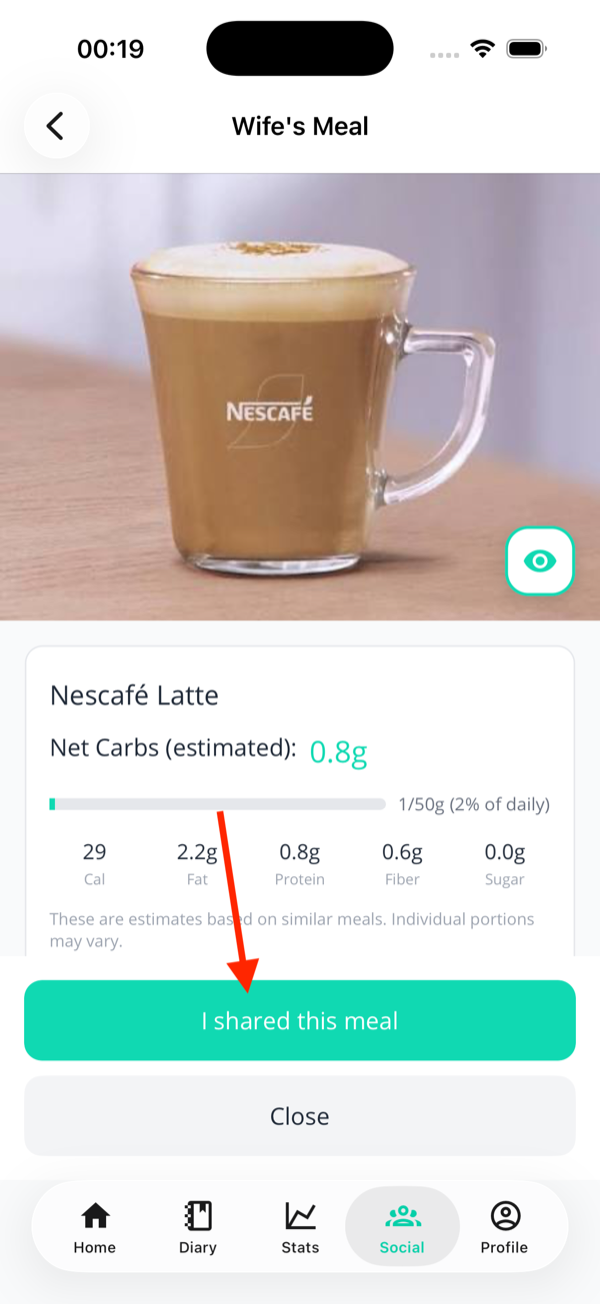
The I shared this meal button —
only appears on meals from family connections.
Person A (the logger):
Log the meal normally (Snap or Manual).
Turn on Share with connections
before saving.
Person B (joining the meal):
Go to Social → Timeline —
the shared meal appears there.
Tap the meal to open it.
Tap the teal
I shared this meal button
at the bottom.
A copy is added to your Diary instantly,
with all the same food items and macros.
Your copy, your diary
The entry added to your Diary is fully yours — you
can edit it, change the date, or delete it
independently. Editing your copy doesn't touch the
original.
📦 Shared pantry
Automatic once both sides are Family
When both of you have marked each other as Family Member,
your scanned pantry items are shared automatically. If your
partner scanned the almond milk you both use, it shows up
in your pantry too — and when the AI spots it in a meal
photo, it uses the correct macros for both of you.
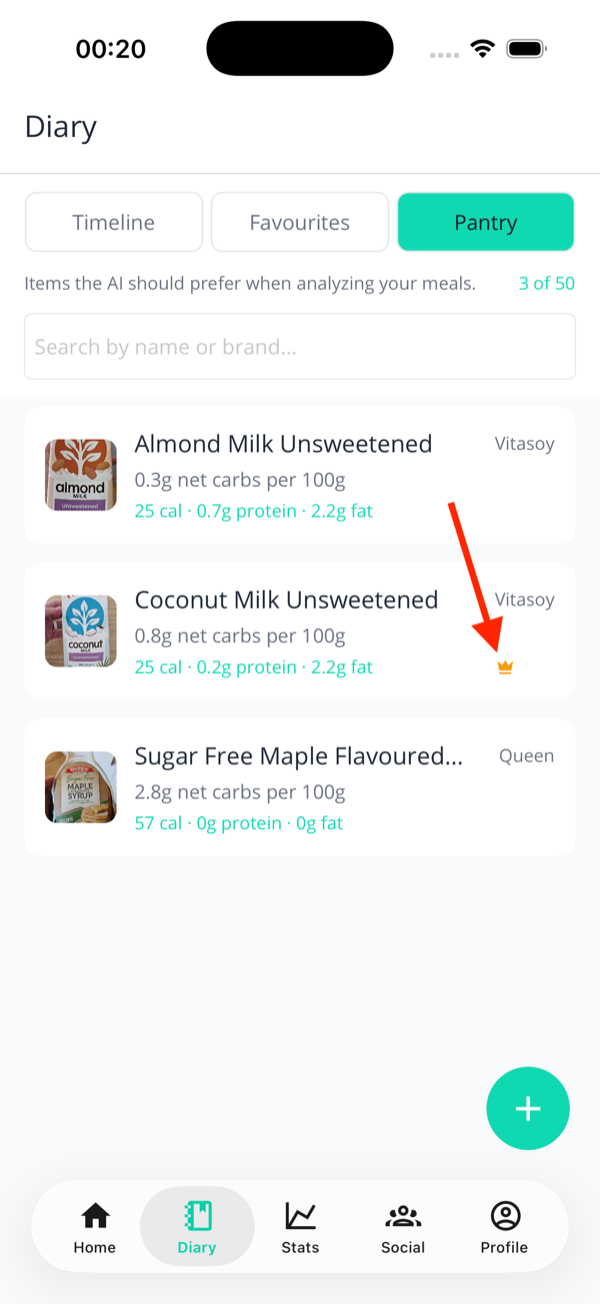
A crown next to a pantry item means it came from a
family member's scan.
You can edit or delete shared items just like your own —
fix the macros, rename it, change the quantity, whatever.
The one thing you can't do is scan a new nutrition label or
swap the photo, since those are tied to the original
capture.
No pantry sharing yet?
If you've both toggled Family on but pantry items still
aren't syncing, try pulling to refresh on the Pantry screen.
The sync runs in the background but can take a minute after
the mutual Family flag is set.
Next: make the app yours — goals, units, notifications, and account controls.