The Profile tab is mission control. Here's every
switch and what it does.
Everything below lives under the Profile tab.
Scroll and you'll pass through your account, your usage, and a
stack of preferences — all of it optional to touch, all of it
changeable any time.
Profile & subscription
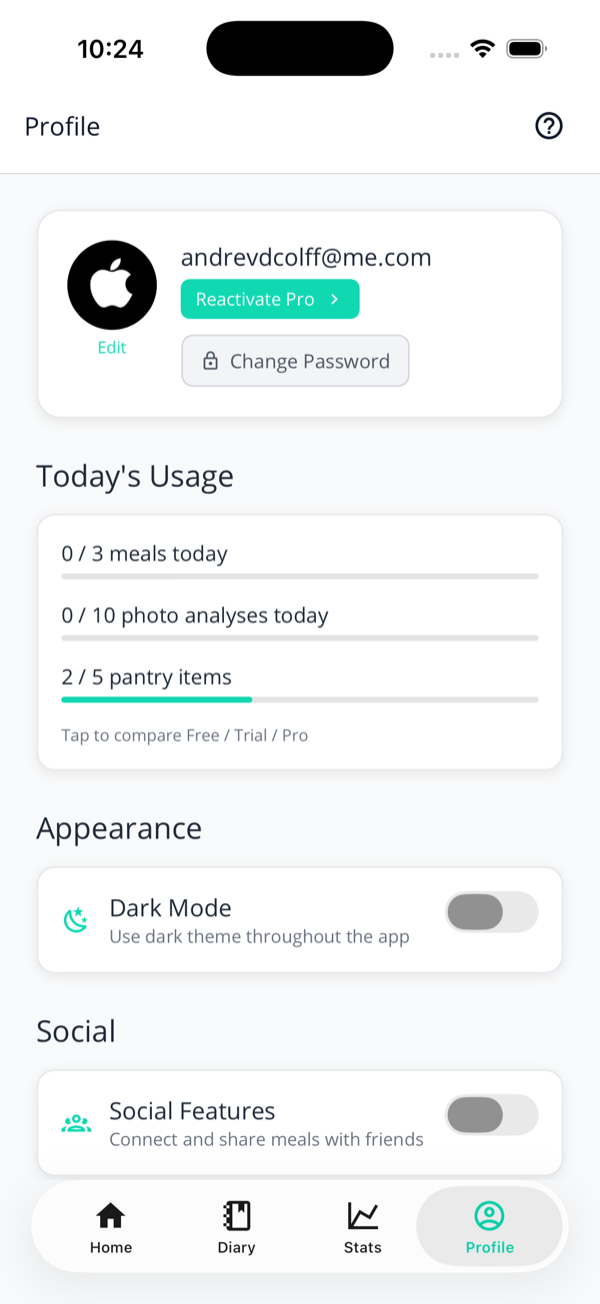
The top of the Profile tab: your account, subscription, and today's usage.
At the top you'll find:
Your avatar & email — tap Edit under the avatar to set a photo.
Subscription button — its label depends on your plan: Upgrade to Pro, Manage subscription, or Reactivate Pro. See the Pro guide.
Change Password — for email accounts.
Today's usage
On the free and trial tiers you'll see a
Today's Usage card with three meters —
meals, photo analyses, and
pantry items — so you always know where you
stand against the daily caps. Tap any row to
compare Free / Trial / Pro. Pro members don't
see this card; there's nothing to meter.
Appearance & Social
Dark Mode — flip the whole app to a dark theme.
Social Features — the master switch for connections and meal sharing. With it on, a second toggle lets you share new meals by default (you can still change any individual meal).
Preferences
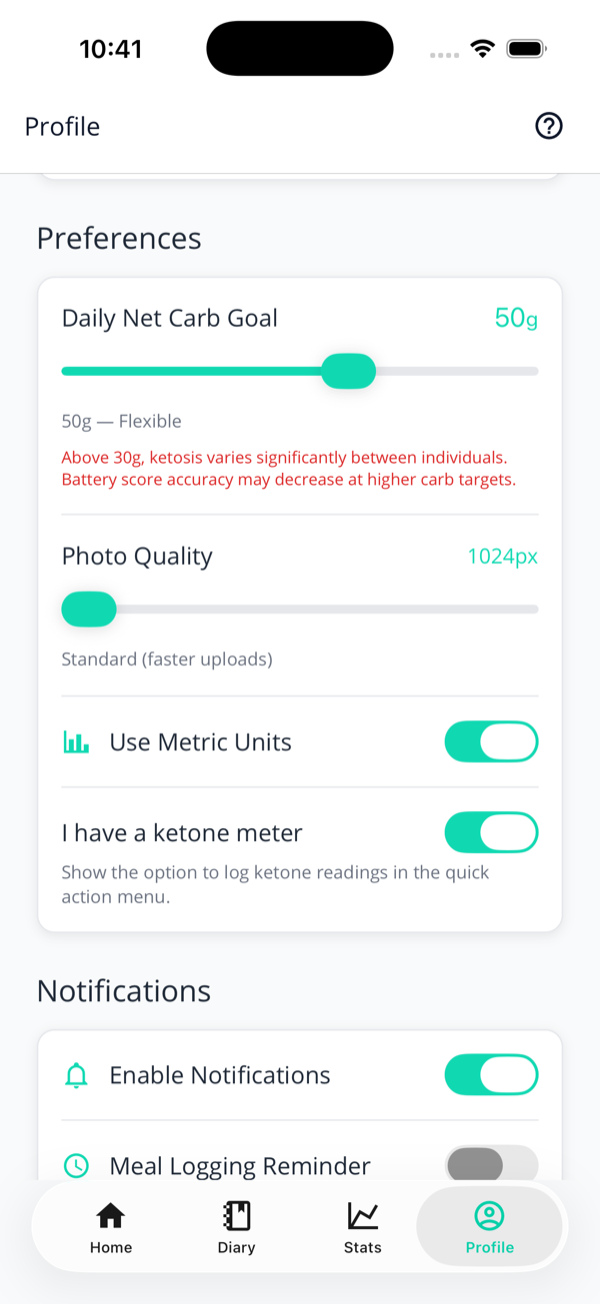
The settings that shape how the app works for you:
Daily Net Carb Goal — the 10–75g slider that drives your Carb Tank and battery. The app labels the zone and warns you above 30g.
Photo Quality — Standard, High, or Maximum. Higher is more accurate but uploads a touch slower.
I have a ketone meter — adds Log Ketones to the quick-action menu.
Everything is in grams
There used to be a metric/imperial toggle here. It's gone — KetoLens is grams and kilograms throughout, because keto macros are quoted in grams everywhere in the world and a units switch only ever added a way to misread your own carb goal.
Preferences: carb goal, photo quality, and the ketone-meter toggle.
Notifications
One master Enable Notifications switch, then:
Meal Logging Reminder — a daily nudge at an hour you pick.
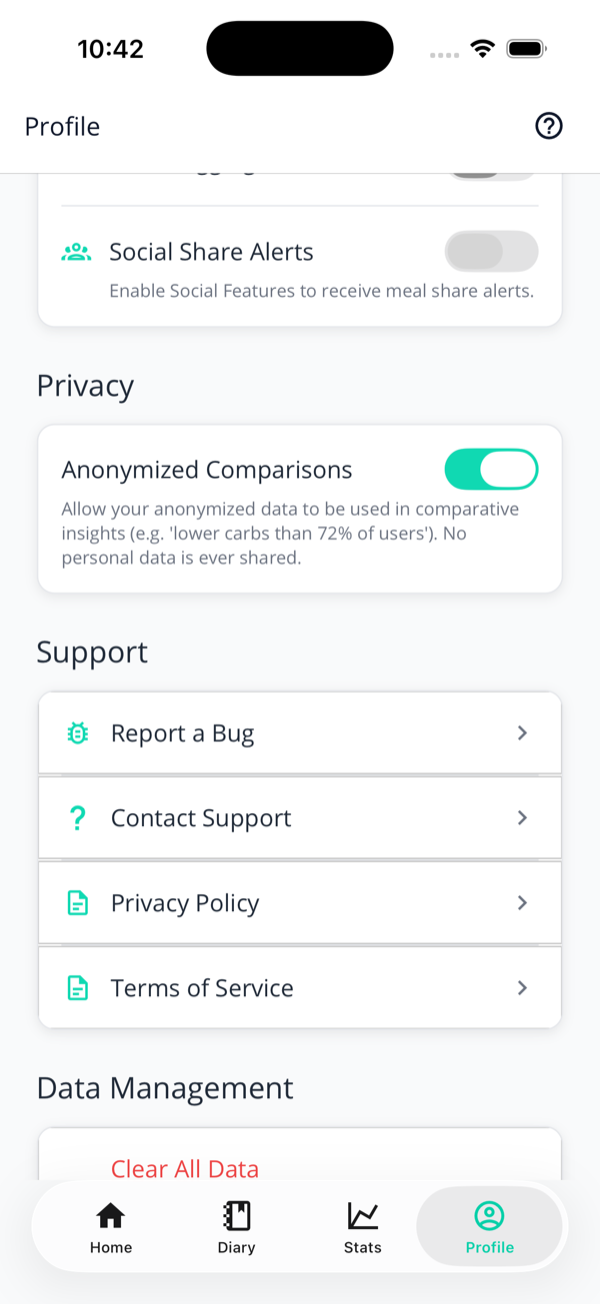
Social Share Alerts — a heads-up when a connection shares a meal (needs Social Features on).
Meal reminders are local notifications from your phone, so
they work even offline.
Privacy & support
Privacy controls and the support links.
Anonymized Comparisons lets your data
(stripped of anything identifying) power comparative
insights like "lower carbs than 72% of users". No
personal data is ever shared — and you can switch it
off.
The Support section has quick links:
Report a Bug & Contact Support — reach us at support@ketolens.app.
Privacy Policy & Terms of Service.
Data, sync & sign out
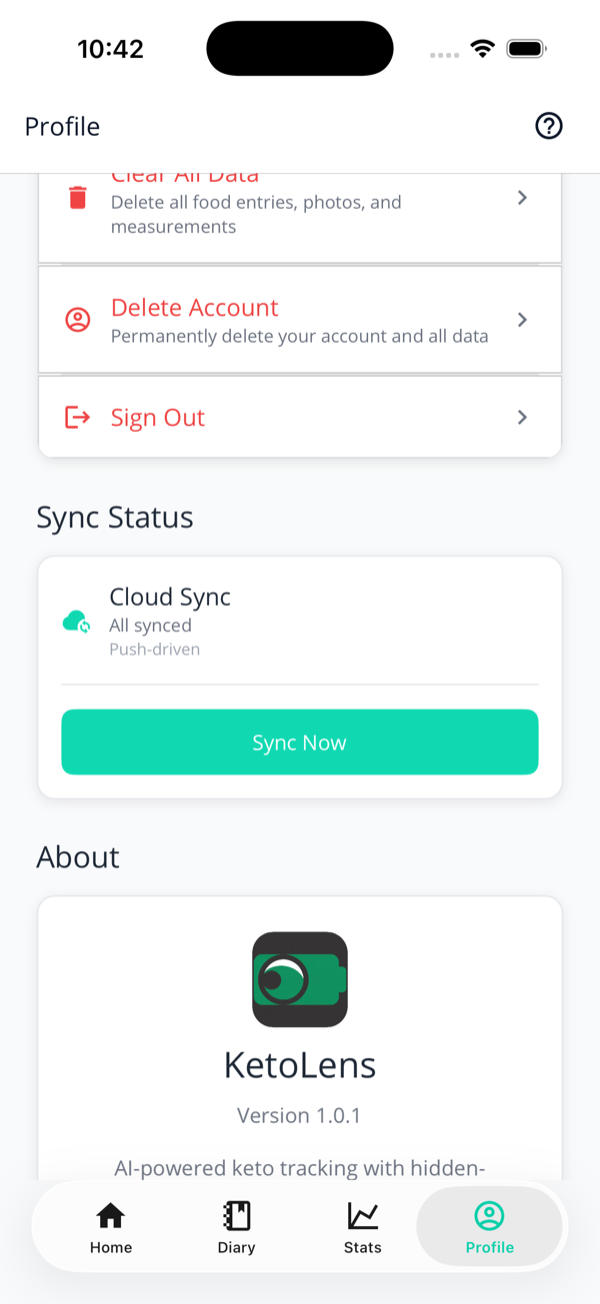
Near the bottom, the powerful (and red) stuff:
Clear All Data — wipes your food entries, photos, and measurements, but keeps your account. This one is immediate and can't be undone.
Delete Account — starts a deletion. Your account is disabled straight away, and everything in it is erased 24 hours later. You can cancel during those 24 hours.
Sign Out — logs you out; your data is preserved and waiting when you sign back in.
Sync Status shows whether you're up to
date and offers a Sync Now button if
you're impatient. KetoLens syncs automatically — on
launch, on pull-to-refresh, and after you log — so you
rarely need it.
Data management, cloud sync, and the app version.
Deleting your account — and changing your mind
Deletion isn't a single irreversible tap. It runs on a
24-hour grace period, on purpose:
You tap Delete Account and confirm. Your account is disabled immediately — nobody can sign in to it.
We email you a link. That link cancels the deletion and restores your account, and it works for the next 24 hours.
If you don't cancel, the hard delete runs 24 hours after your request: entries, photos, measurements, credentials, the lot — from our servers and from cloud storage.
Clicking "confirm" in the email doesn't speed it up
The 24 hours stand either way. That's deliberate — an accidental click on a confirmation link shouldn't cost you the time you'd need to undo it.
After 24 hours, it really is gone
Once the grace period passes there's no recovery — not by us, not by support. If you want back in after that, it's a fresh account. And if you only want a break, Sign Out keeps everything exactly as you left it. Lost the cancellation email while the clock is still running? Mail support@ketolens.app quickly.
Next: hitting the daily caps? Here’s exactly what KetoLens Pro unlocks.