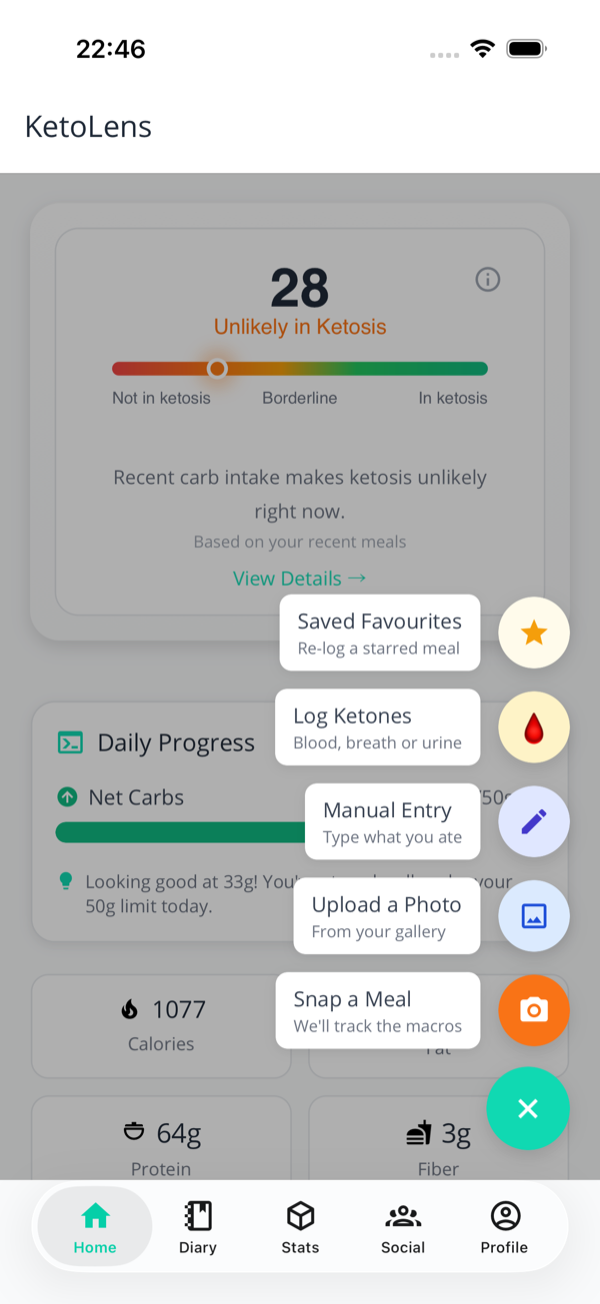
Tap the green + on any tab to see all
logging options.
📸 Snap a Meal
Best for: real food on a plate
Tap the + button (bottom right of
any tab).
Tap Snap a Meal — the camera opens.
Take a photo of your food.
Wait a few seconds while the AI works out what you
ate.
Review the detected items and tweak anything that
looks wrong.
Tap Save Entry.
Already have a photo? Tap
Upload a Photo instead and pick one from
your gallery — same flow from there.
Good to know
The AI is doing its best, but it isn't psychic — it can only
see what's in the photo. If there are mushrooms hiding under
that steak, it'll miss them. Use the
Looks Wrong? button to add anything it
didn't spot. Your corrections also help the app learn over
time.
✍️ Manual Entry
Best for: packaged food & precise control
Tap the + button.
Tap Manual Entry.
Type a meal name (e.g. "Lunch" or "Cheese
omelette").
Tap + Add Food Item for each food
in the meal.
For each food: enter the name, weight or quantity,
and macros (see below).
Tap Save.
Three ways to fill the macros
The macro fields (carbs, fat, protein, fibre, calories) are
always editable. You've got three options
for filling them — pick whichever's quickest:
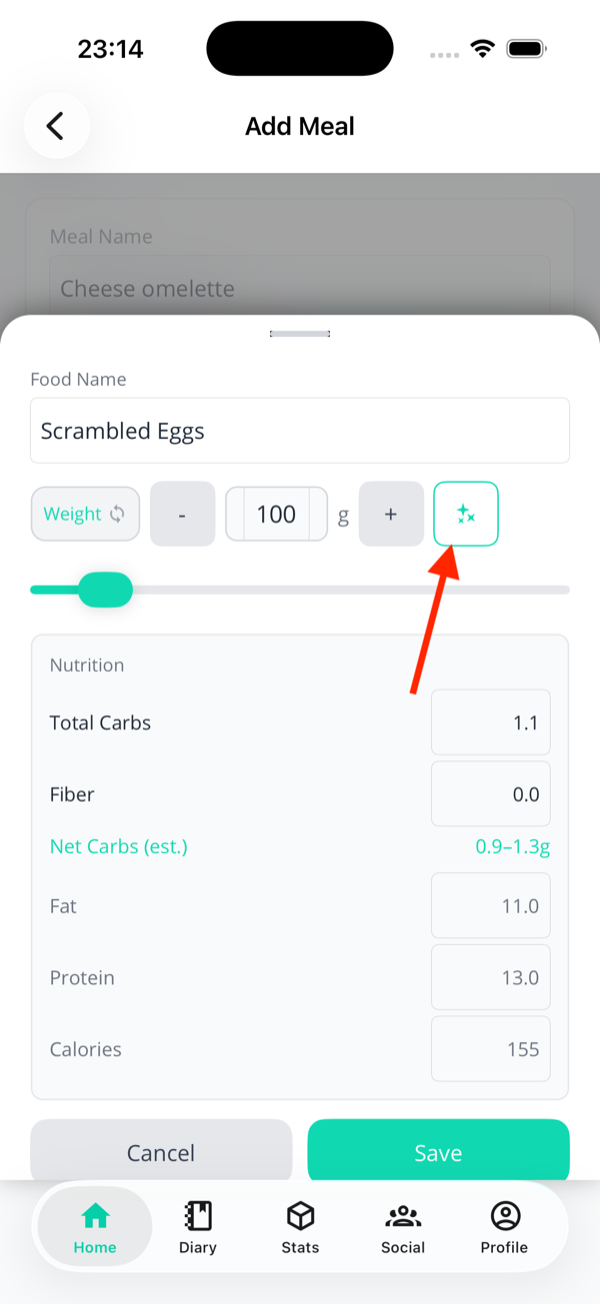
1. Tap the sparkle ✨
KetoLens estimates the macros from the food name and
weight using its food database. Best when you're not
sure of the exact numbers.
Heads up
On the free tier you'll see a padlock on the
sparkle. Manual entry and previously-logged foods
still work without limits.
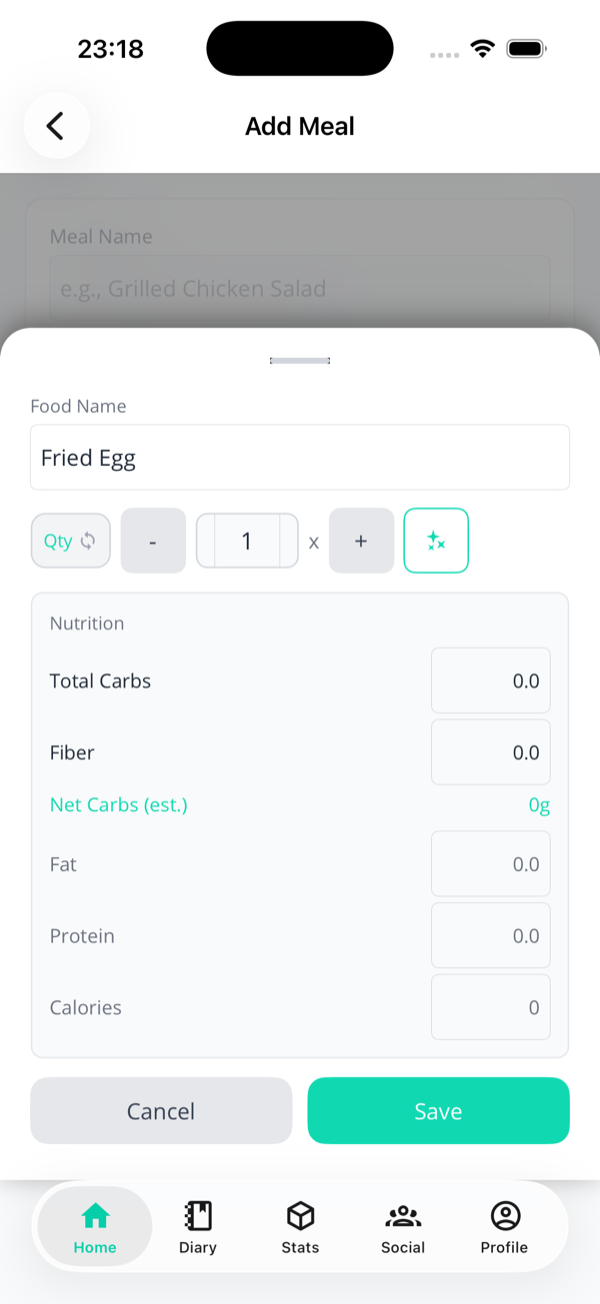
The sparkle ✨ button — tap it to auto-estimate.
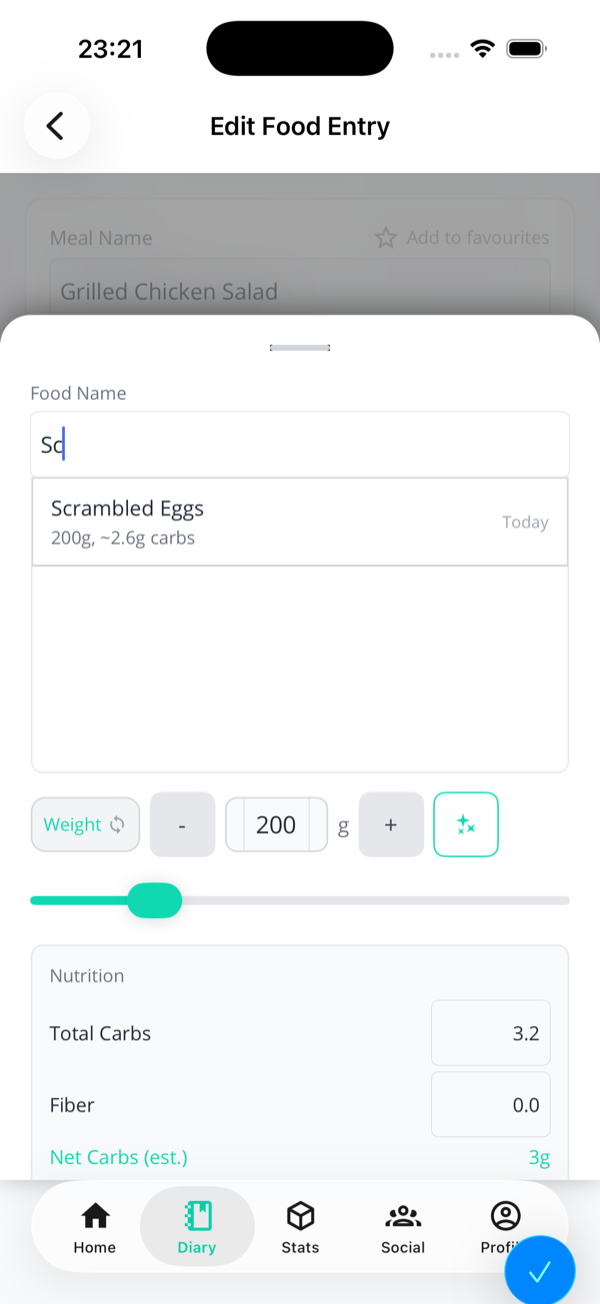
Start typing — previously-logged foods appear as you
type.
2. Pick a previously logged food
If you've logged the same food before, suggestions
appear as you type the name. Tap one and you'll get
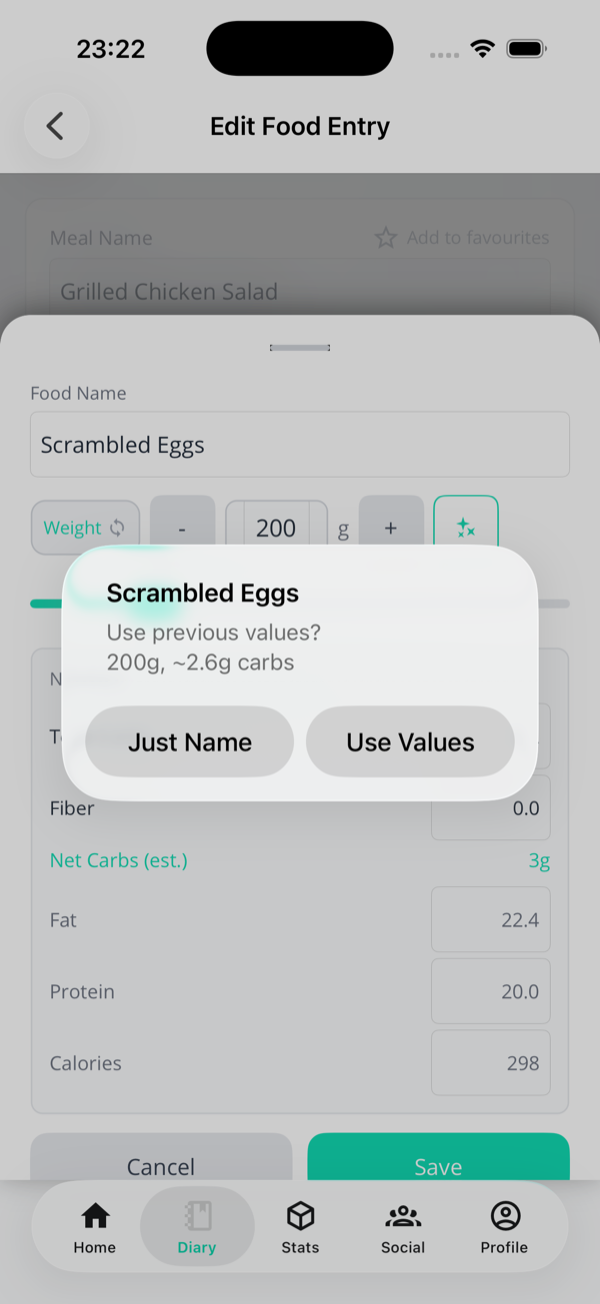
a choice:
Just Name — fills only the food
name. You enter the macros yourself.
Use Values — fills the name
and the macros from your last log of
this food. Then just tweak the weight or
quantity if it's different this time.
The "Use previous values?" prompt that appears after
picking a suggestion.
3. Type the macros by hand
All the macro fields are always editable. This is
the right choice when you're working from a packet
label or you know the exact values you want.
The little Weight /
Qty toggle on the left of the
amount row lets you switch between grams and counts
(e.g. "1 fried egg" instead of "60g fried egg") —
handy for things that don't really make sense by
weight.
Quantity mode — entering "1 Fried Egg" with macros
to be filled in by hand.
⭐ Saved Favourites
Best for: meals you eat all the time
How to save a favourite
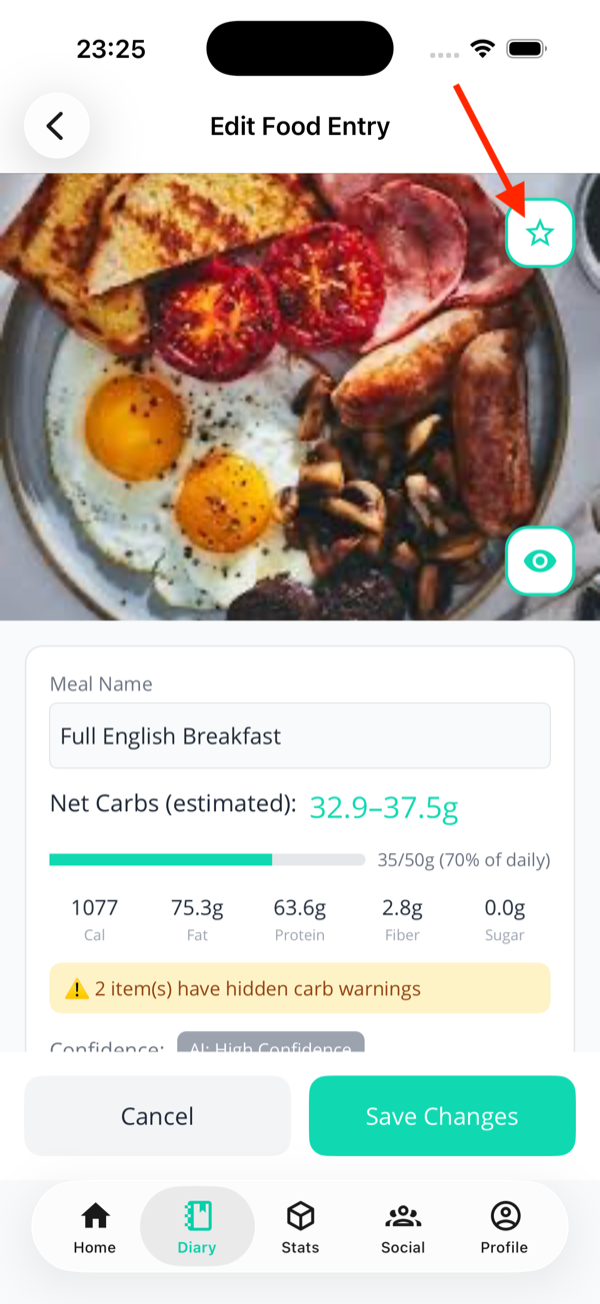
The star sits on the top-right of the meal photo (or
beside the meal name if there's no photo).
Open any meal you've logged (tap it in your
Diary).
Tap the star ⭐ at the
top-right of the photo (or next to the meal name
for meals without a photo).
That's it — the star turns teal and the meal is
saved to your favourites.
Tap the star again to un-favourite. There's no
confirmation — toggling is instant.
Where to find your favourites
Two entry points:
The + button → Saved
Favourites
— fastest when you're about to log a meal.
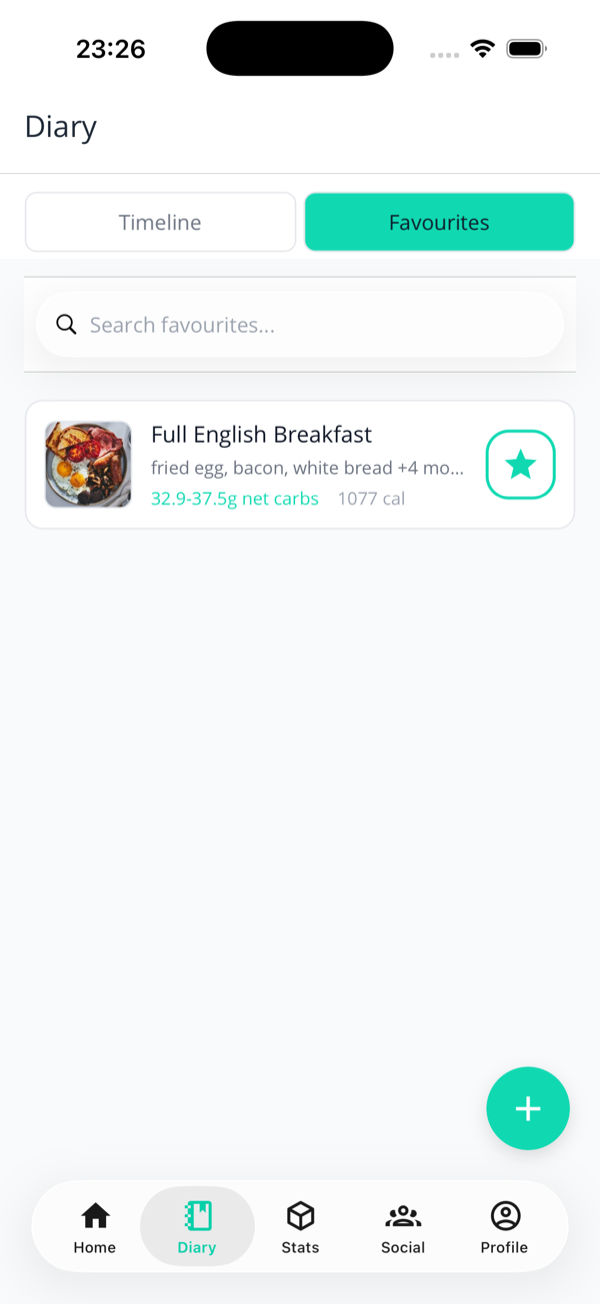
Diary tab → Favourites segment — switch
from Timeline to Favourites at the top
of the Diary to browse and search.
The Favourites segment of your Diary — your starred
meals, searchable.
Re-logging a favourite
Tap + →
Saved Favourites (or open the
Diary's Favourites tab).
Pick the meal — search if you've got loads.
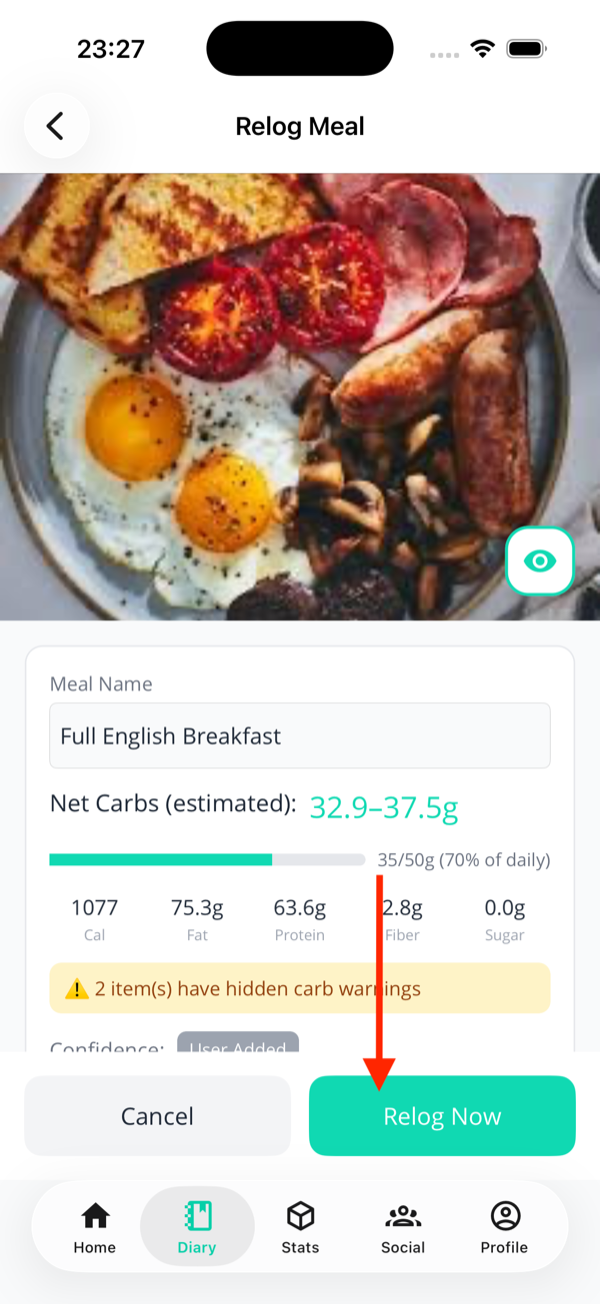
The meal opens in
Relog Meal mode, pre-filled
with everything from the original.
Tweak quantities, swap items, or leave as-is if
nothing has changed.
Tap Relog Now. A fresh entry is
added to your Diary; the original favourite
stays untouched.
Relog mode. Tap Relog Now to save
it as a new entry.
🛠️ Date, time & re-logging
Two tools you'll find on every saved meal — useful when you
forgot to log at the time, or you're eating the same thing
again.
Change the date or time
Open the meal from your Diary.
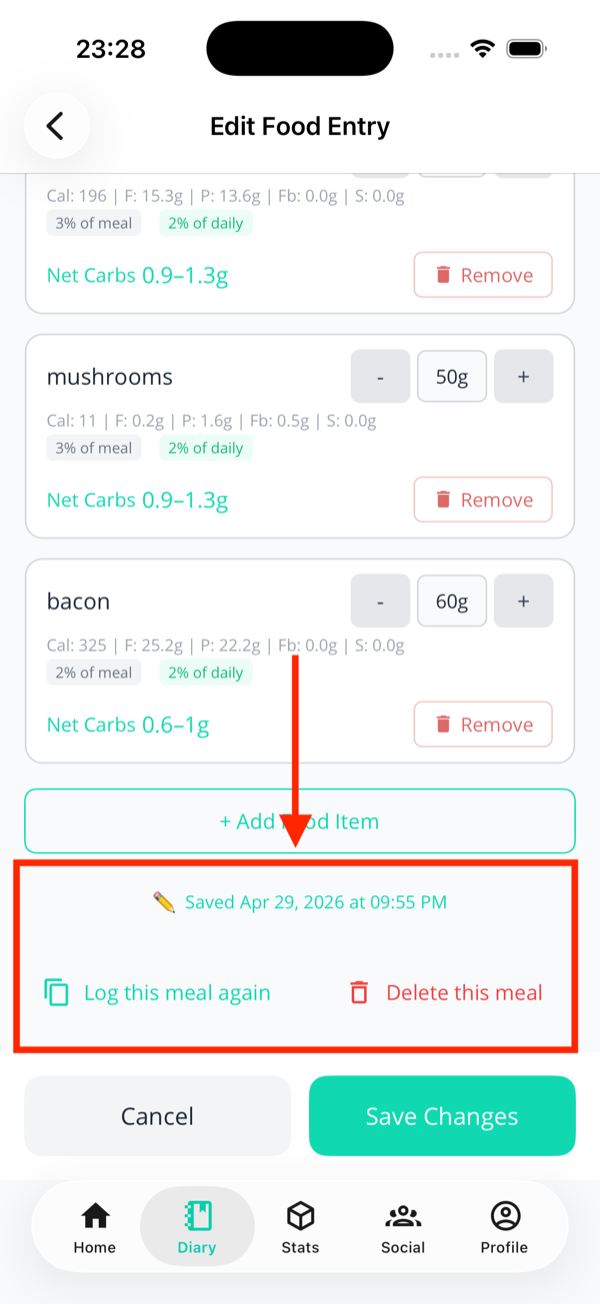
Scroll to the
Saved [date] at
[time]
label (small ✏️ pencil icon).
Tap the label — the date and time pickers slide
open.
Pick a new date and/or time. Future dates are
blocked.
Tap Save Changes.
Log this meal again
Open any saved meal from your Diary.
Scroll down and tap
Log this meal again (📋 copy
icon).
The meal is duplicated as a new draft you can
tweak — adjust quantities, items, date or time.
Tap Relog Now to save it as a
fresh entry. The original stays exactly as it
was.
Tip
"Log again" is the same idea as Favourites, just one
tap further away. Use it for meals you don't want
cluttering your Favourites — yesterday's leftovers,
a one-off restaurant order, etc.
The bottom of any saved meal: edit the date/time,
re-log, or delete.
Mix and match throughout the day. There's no "wrong" mode — the
app just wants to know what you ate.
Free tier: 3 meals a day
All four routes count towards the same daily total — a swiped pantry item and a re-logged favourite cost a meal just as a fresh photo does. Hit 3 and you'll be offered the upgrade rather than allowed to log a fourth. The count is tracked on our side against your own local midnight, so reinstalling won't reset it, and travelling doesn't cost you a day. The full list of caps is on the Pro page.
Next: the AI’s estimate isn’t gospel — here’s how to check it and fix what it got wrong.