Teach the AI what's actually in your kitchen — once — and stop
arguing with it about your favourite tortillas.
The pantry is a little library of the packaged foods you
actually eat. You scan the nutrition label once, and from then
on, when KetoLens spots that food in a meal photo, it uses
your macros instead of the AI's best guess. No more
"the app thinks my low-carb wrap has 22g carbs."
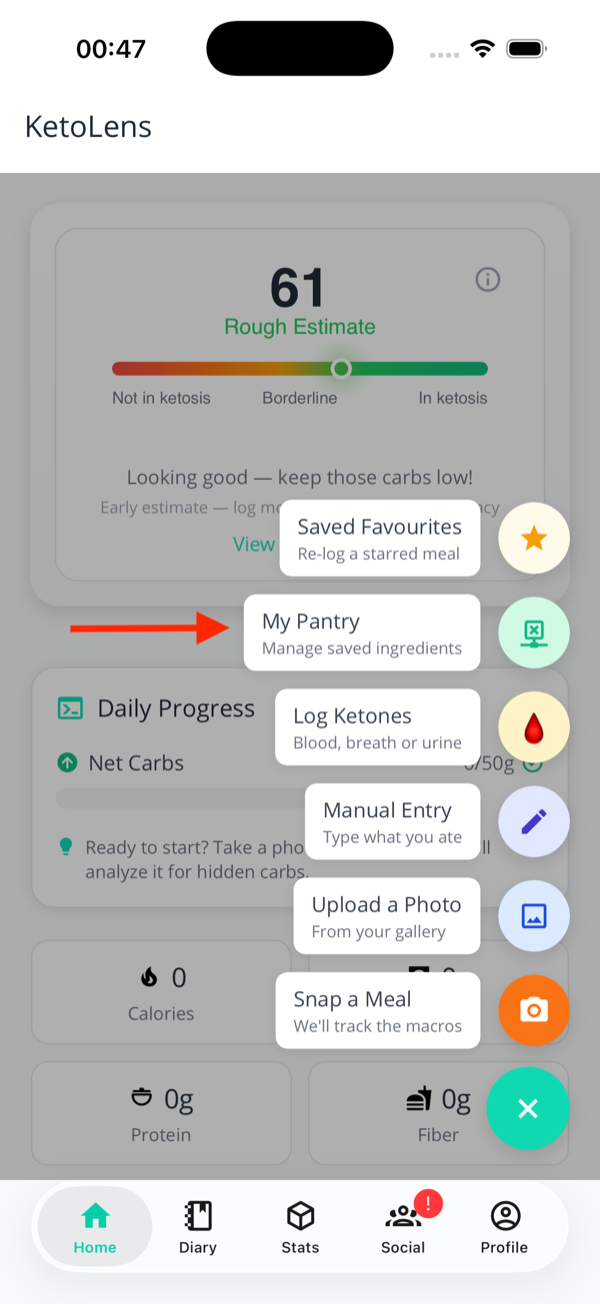
From any tab, tap the green
+ button (bottom right).
Tap My Pantry — the apple icon
with the subtitle
"Manage saved ingredients".
You're in. The header shows how many items you've
saved out of the cap (e.g.
"3 of 100").
Tap + on any tab, then
My Pantry.
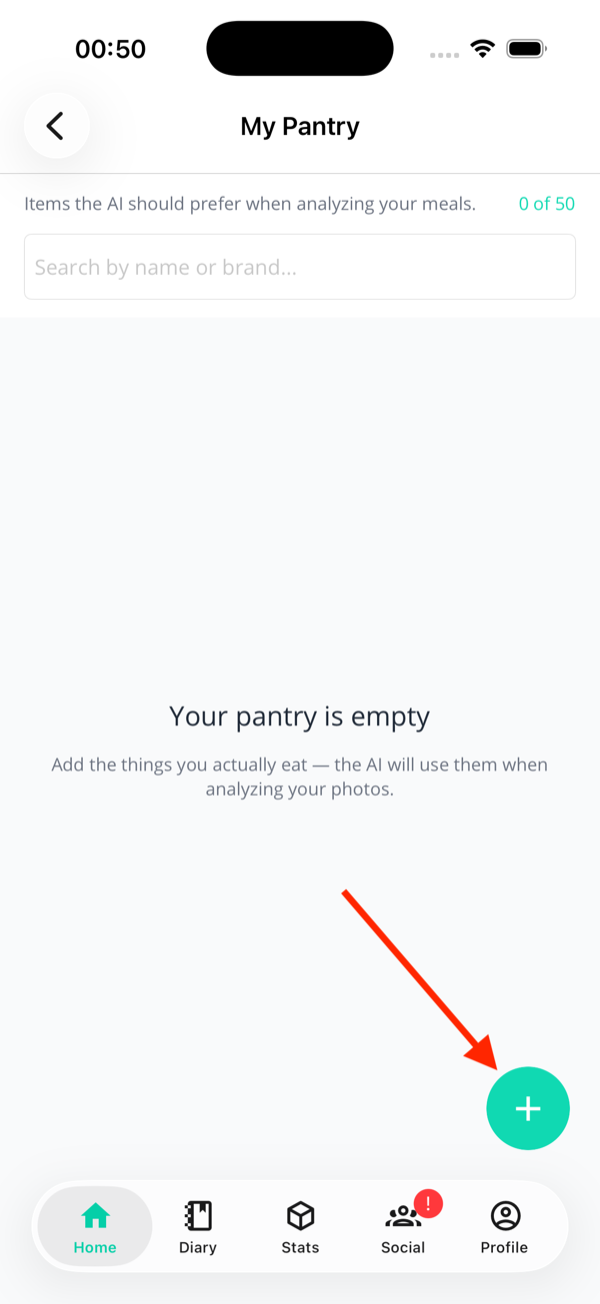
First time in: empty pantry, plus button waiting
bottom-right.
📷 Adding an item
Best for: every new product you eat
Tap the floating + on the pantry list. You
land on the
Capture page with two photo slots. This is
the bit people get wrong, so read carefully.
The two photos
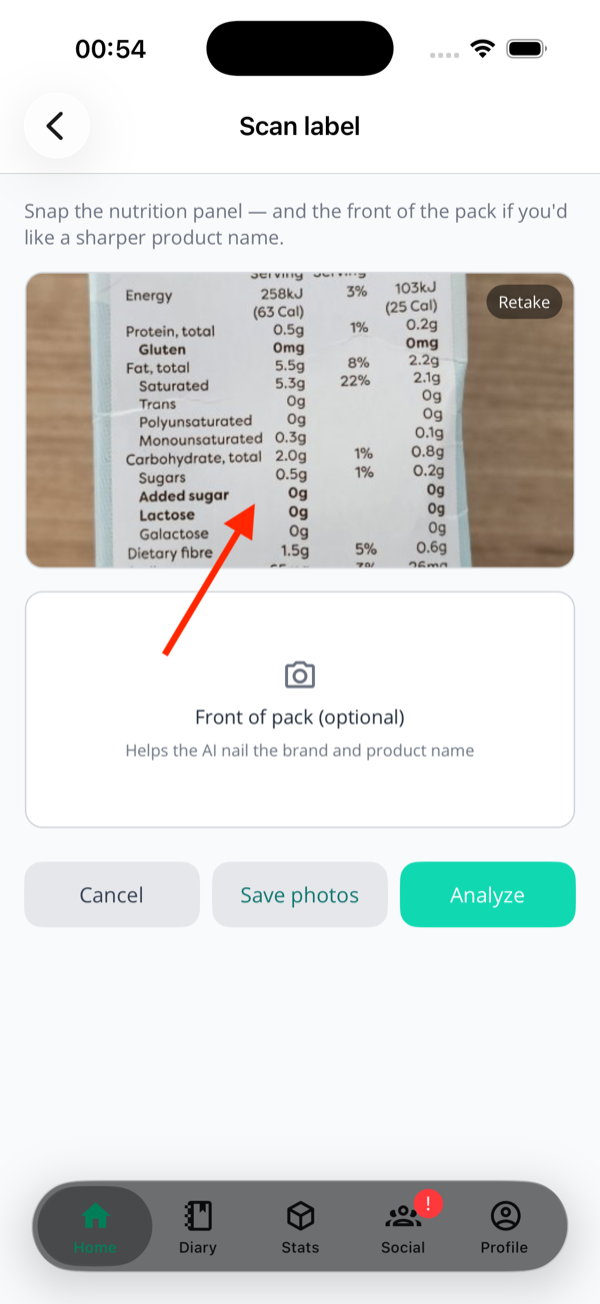
1. The nutrition label (required)
This is the photo the AI actually reads. It needs
to clearly show:
The "per 100g" column (or the
serving size, if that's all the label gives
you).
Carbs, fibre, fat, protein, calories — all
legible.
The serving size in grams if
it's printed (e.g. "Serving size: 32g"). Saves
you a step later.
Tip: hold the pack flat, fill the frame, decent
light. A blurry label photo means the AI guesses,
and then you'll be hand-typing macros anyway.
Two slots. Don't mix them up.
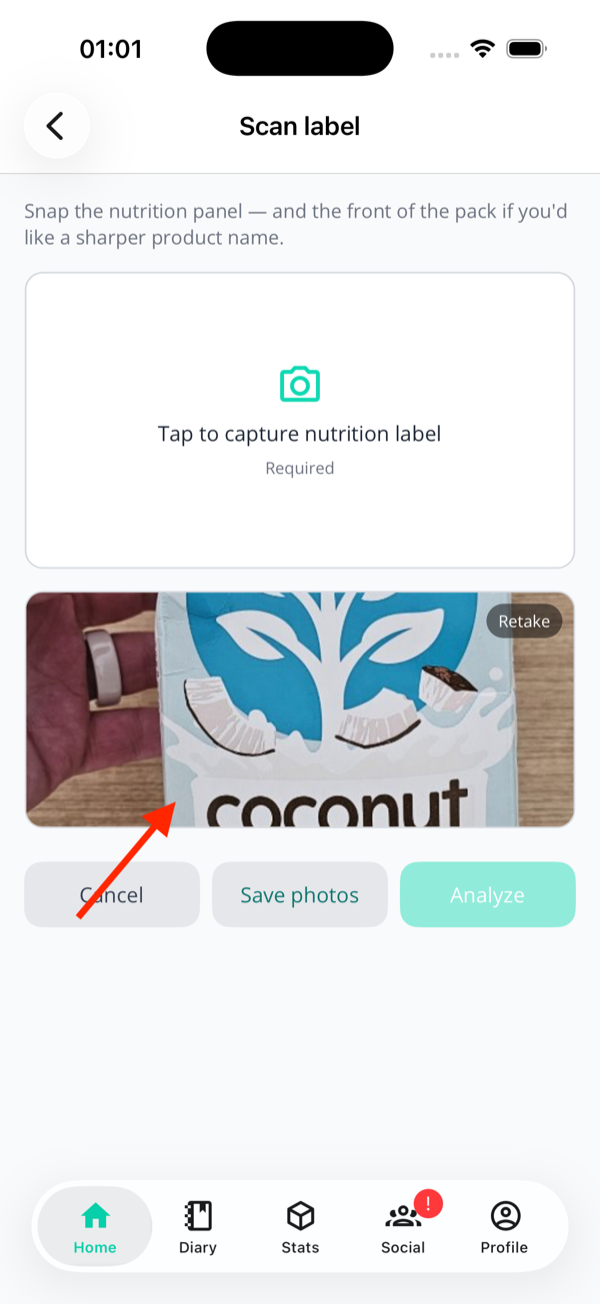
2. The front of the pack (optional, but do it)
This one's not for the macros — those come from the
label. The front shot helps the AI nail the
brand and
product name (so "Califia Farms
Unsweetened Almond Milk" doesn't get filed as
"almond milk" and confused with the sugary kind).
Skip it if you don't care about the name being
tidy. The macros will still be correct.
A clean front-of-pack shot. Brand readable, no
glare.
What each slot actually wants
Top slot = the small print on the back
with the numbers.
Bottom slot = the big logo on the
front. Don't put the front of the pack in the top slot
— the AI will try to read macros off your branding and
return nonsense.
Then tap one of two buttons
Analyze — sends both photos off, AI
extracts the macros, brand, product name and serving
size. This is what you want 99% of the time.
Save photos — uploads the photos
without running the AI. Use this if you're just
replacing a blurry label on an item you've already
added.
✅ Reviewing what the AI got
Best for: spotting AI brain-farts before they stick
After Analyze finishes (a few seconds),
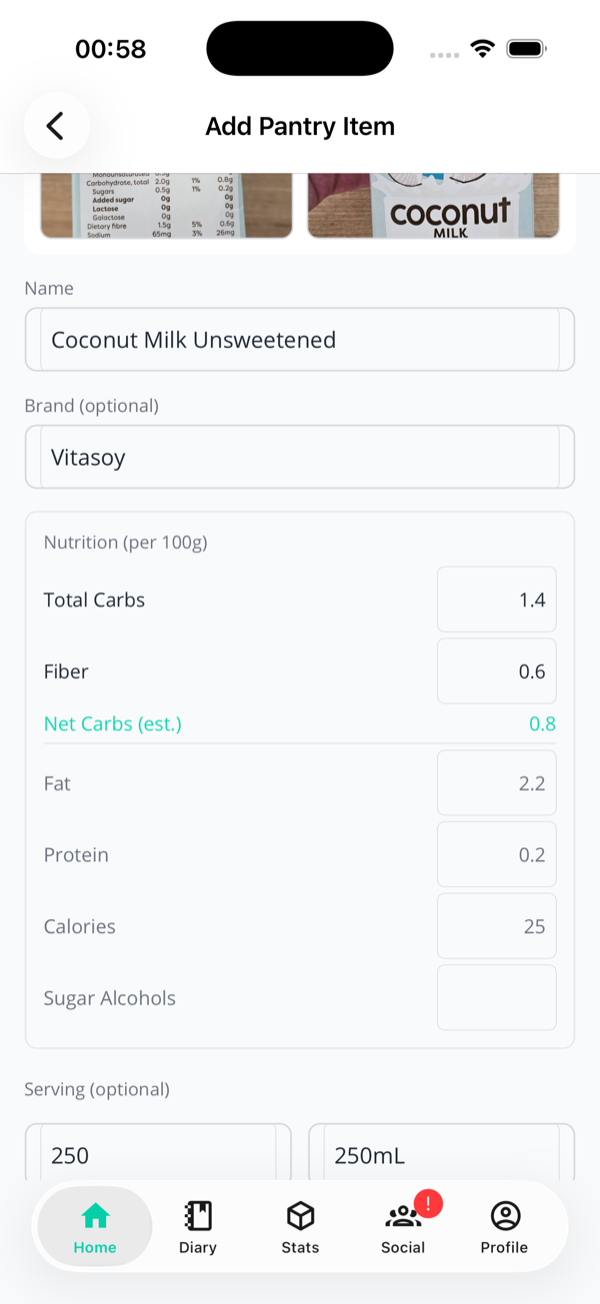
you land on the edit page with everything pre-filled. Your
job is to skim, fix anything obviously wrong, and save.
Net carbs — calculated for
you, can't be edited directly. Fix the total
or the fibre instead.
Serving (optional) — grams
plus a label like "1 wrap" or "1 cup".
Notes — free-form, e.g.
"low-carb tortilla — only at Woolies".
Edit page after a successful scan — skim, tweak,
save.
"Showing per-serving values" warning
If the label only had per-serving numbers and no "per
100g" column, you'll see an orange banner at the top
of the edit page. The macros shown are
per serving, not per 100g. Two ways to clear
it:
Type the serving size in grams
(the app will scale everything for you), or
Edit any macro field — that signals you've
reviewed the numbers and want to keep them as-is.
Until one of those happens, the
Save button stays disabled. It's not
being mean, it just doesn't want garbage data in your
pantry.
Happy with everything? Tap Save. The item
syncs in the background and shows up in your pantry list
immediately.
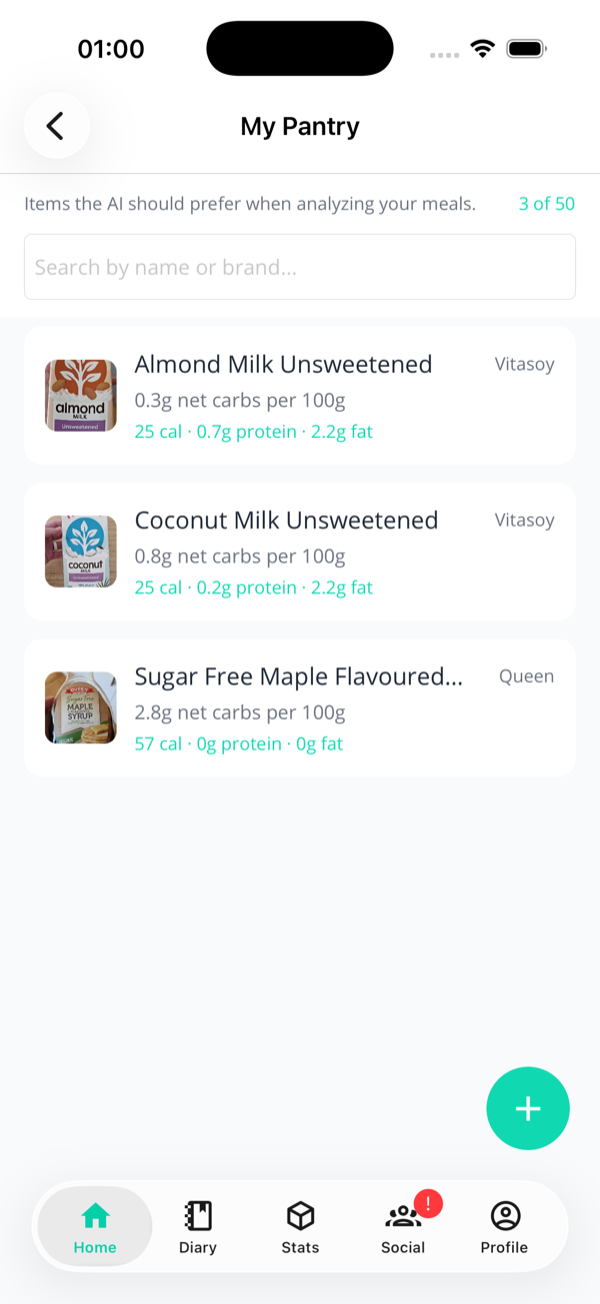
📋 The pantry list
Best for: finding, editing, deleting
Each item shows the front-of-pack thumbnail (if you took
one), the name, the brand, the net carbs per 100g, and
the calories / protein / fat. Tap any card to edit.
Search bar at the top filters by name
or brand. Useful once you've got 20+ items.
The counter in the header
("X of 5" on free, "X of 100" on trial or Pro) is your
remaining budget — see Limits
below.
Tap a card to edit anything: macros,
name, photos, notes.
The pantry list — search, tap to edit, watch the
counter.
⚡ Logging a pantry item as a meal
Best for: the same snack, again
The pantry started life as a reference the AI consults. It
now also works as a shortcut you drive yourself — because if
you eat the same two crackers every afternoon, photographing
them daily is a silly thing to ask of anyone.
Option A — Swipe the card
Swipe left on any pantry card. A green
Swipe hint appears and turns into Release
once you've pulled far enough — let go and the item is
logged to today's diary immediately. You'll get a brief
"Logging meal…" overlay, a confirmation toast, and then the
app slides you over to the timeline so you can see it landed.
Option B — From the item's edit page
Open any saved item and tap the teal
Log this as a meal link. Same result — handy
when you're already in there adjusting something.
What exactly gets logged
One serving. Whatever you set as the item's serving size in grams — or 100g if you never set one. Eating two? Log it twice, or edit the entry afterwards.
Exact macros, not a range. These come off a nutrition label you photographed, so there's no guesswork to represent — you'll see a single net-carb figure rather than the usual estimated range.
Marked as yours, not the AI's. The entry won't be labelled "AI estimated", because it wasn't.
The label photo comes along, so the entry doesn't sit in your diary as a blank card.
Any hidden-carb warning carries over — if the item is flagged, the meal is flagged.
The meal type is guessed from the clock — breakfast, lunch, dinner or snack, based on when you swiped. Change it in the entry if it guessed wrong.
It counts against your daily meal cap
A swipe-logged pantry item is a meal like any other, so on the free tier it uses one of your 3 a day. If you're already at the cap, the swipe takes you to the upgrade screen instead of logging.
🎯 When a meal uses a pantry item
Best for: understanding the magic
Here's where the work pays off. When you snap a meal and
the AI identifies a food that matches something in your
pantry, it'll quietly swap the AI's guess for
your macros — the ones from the label you scanned.
How you know it happened
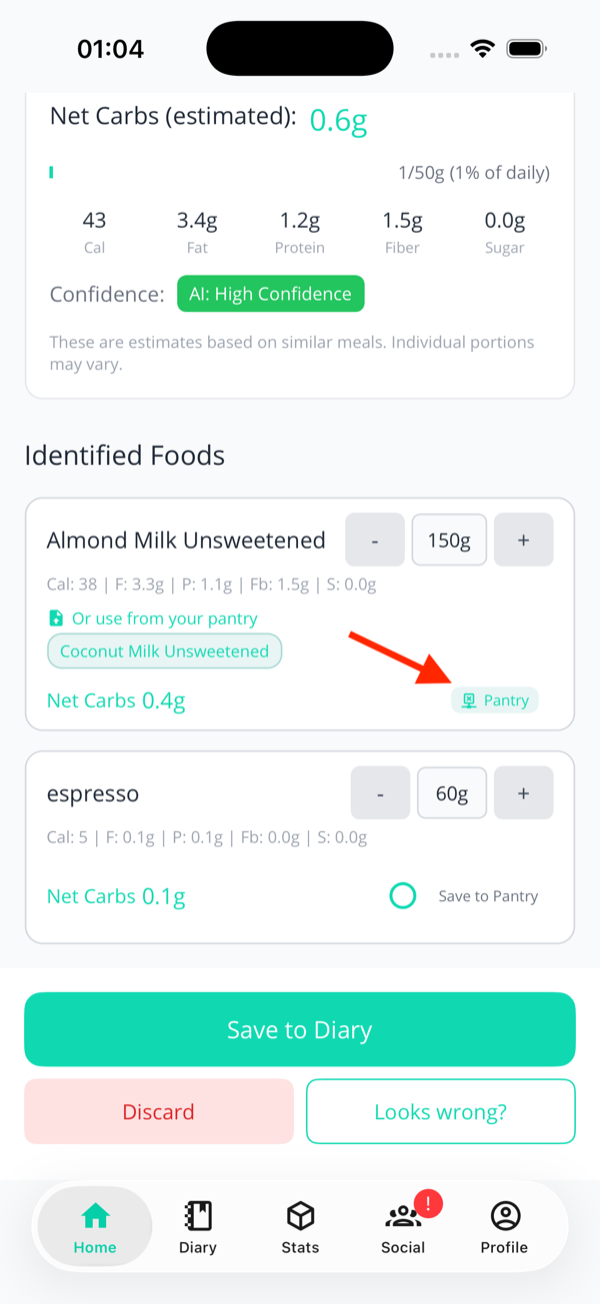
The food card on the meal review screen shows a small teal
"Pantry" pill (with an apple icon) in the
bottom-right corner. The macros on the card are now your
pantry item's per-100g numbers, scaled to the portion the
AI estimated.
Long-press or tap the
"Pantry" pill to see which item
it matched — the action sheet header tells you,
e.g.
"Matched: Califia Farms Almond Milk".
If the match is right, do nothing — just save the
meal. The macros stick.
That little teal Pantry pill
means your macros, not the AI's guess.
Why the AI sometimes misses a match
Matching uses the food name and brand the AI sees in
the photo. If your meal photo doesn't show the
packaging (e.g. you've already plated the food), the
AI has to guess from looks alone — and a generic
"almond milk" in a glass won't match a specific
pantry brand. That's expected. Use
Swap to fix it.
🔄 Swapping to a different pantry item
Best for: when the AI picks the wrong one
Two ways to override the match. Both apply instantly — no
save needed at this point, the macros on the card update
as soon as you choose.
Option A — Tap the "Pantry" pill
Tap the pill, pick a different match — or revert
entirely.
On the food card, tap the teal
Pantry pill (bottom-right).
An action sheet appears titled
"Matched: [current item]".
Pick one:
Revert to AI guess —
drops the pantry link, brings back the
AI's original name and macros.
Use [alternative] —
swaps to that pantry item's macros.
The AI suggests these based on what it
saw in the photo.
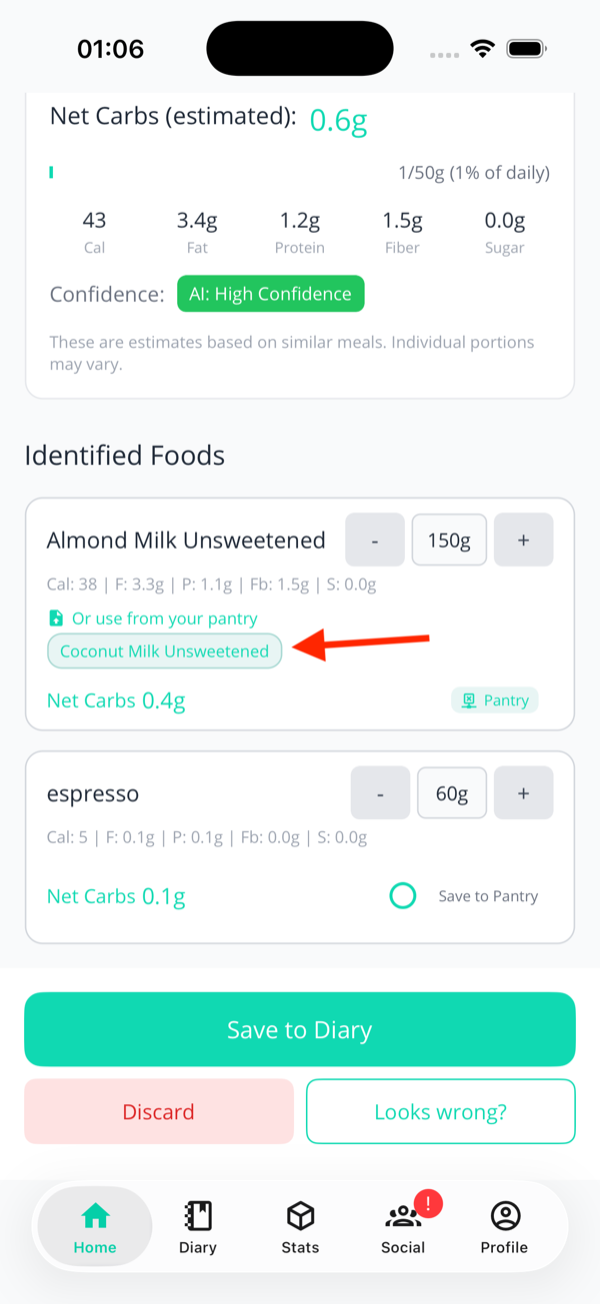
Option B — Tap a pantry chip
Just below the food card you'll sometimes see a small row
titled "Or use from your pantry" with a few teal
pill chips — alternative pantry items the AI thinks could
fit. Tap a chip; macros change immediately. Same effect as
the action sheet, one tap less.
The chip row — one tap to swap, no menu needed.
Swaps aren't saved until you save the meal
Swap as many times as you like — nothing is committed
until you tap Save Entry on the meal.
If you back out, the swap is forgotten.
💾 Saving a pantry item from a meal you just logged
Best for: finding a new product mid-log
You're in the middle of logging a meal, the AI's
identified an item, and you realise you eat this one all
the time but haven't added it to your pantry yet. No need
to back out and start over.
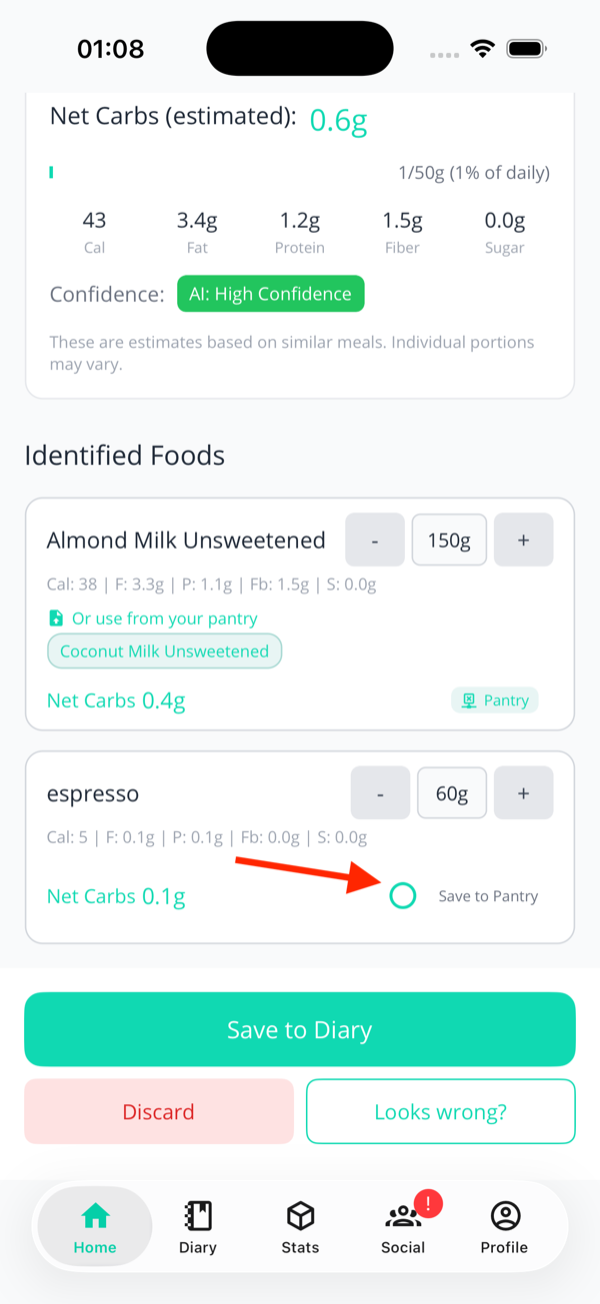
On the food card, find the small
Save to Pantry checkbox
(bottom-right, teal).
Tick it. The item's macros, name and brand
from the card will be used as the starting
values for the new pantry entry.
Save the meal as normal. A new pantry item is
created in the background.
The new pantry item won't have a nutrition-label
photo (you didn't scan one), so the macros are
whatever the AI estimated. If you want to upgrade
it later, open the item from the pantry list, tap
Scan Label, and snap the real
label.
Tick Save to Pantry; a new entry
is created when you save the meal.
🚧 Limits, deletes & gotchas
How many items you get
It depends on your tier: 5 items on the free
tier, 100 on a trial or Pro. When
you hit whichever cap applies, the floating
+ button hides and a banner appears at the
bottom saying
"Pantry is full. Remove an item to add another."
Five goes quickly, and that's the point at which the pantry
starts paying for itself — it's meant for the handful of
packaged things you buy again and again. A hundred is a lot;
if you're hitting that wall, prune the things you
tried once and never bought again. See
the tier comparison for the
full picture.
Deleting an item
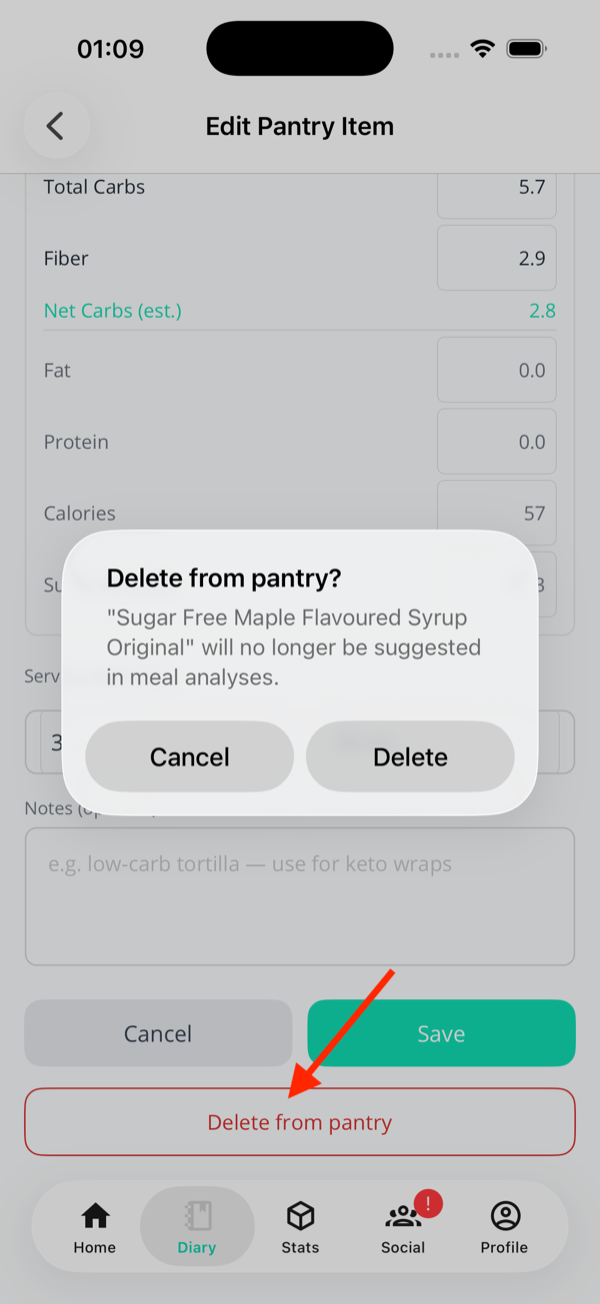
Open the item from the pantry list.
Scroll down and tap
Delete from pantry (red text, bottom
of the page).
Confirm — you'll see
"'[Item Name]' will no longer be suggested in
meal analyses."
One last "are you sure?" before the item's gone.
Things the pantry doesn't do (yet)
Quantity / stock tracking. Logging a
meal that uses a pantry item doesn't decrement
anything. The pantry is a macro reference, not an
inventory app — if you want to know whether you've got
eggs left, look in the fridge.
Barcode scanning. The button's there
with a "Coming soon" label. For now: scan the label
instead.
Auto-deduplication. If you try to
save a second item with the exact same name as an
existing one, you'll get blocked with a message
suggesting you edit the original instead.
Quick comparison: pantry vs. favourites
Both save you typing, but they solve different problems.
📦 Pantry
⭐ Favourites
Holds
Single ingredients (e.g. one tortilla brand)
Whole meals (e.g. "Full English Breakfast")
Macros come from
The nutrition label you scanned
The original meal's macros
Used by
The AI, automatically, when it spots a match
You, manually, when you re-log
Cap
5 items free, 100 on trial or Pro
No cap
Use both. Pantry items make the AI's automatic identification
more accurate; favourites make re-logging the same meal
effortless.
Next: want to swap guesswork for a real number? Log a ketone reading.
![The action sheet shown after tapping the Pantry pill, with 'Revert to AI guess' at the top and several 'Use [alternative name]' options below](assets/screenshots/22-pantry-swap-sheet.png)